
Overview | Network Setup | JRiver Setup | Roon Setup | Qobuz Setup | Firmware
Firmware
This page contains instructions for checking the current firmware that is installed on your renderer. If the Network Renderer V2 is provided with an active internet connection, the Renderer V2 will automatically stay up to date with the latest firmware.
The renderers update procedure is pretty simple and happens as discretely as possible. After the renderer ensures that it has an active internet connection, its waits for 5 minutes before checking if there is an update to be installed. If there is no update, the renderer will wait 24 hours before checking again. If there is an update, the renderer will download and install the firmware, but it wont be active until a reboot takes place. A restart can be forced by the user by simply powering off your DAC and then turning it back on. However; the renderer will reboot itself without turning off your DAC after the unit has sat idle with no playback detected by the renderer for 1 hour.
Checking Renderer firmware (desktop/mobile device)
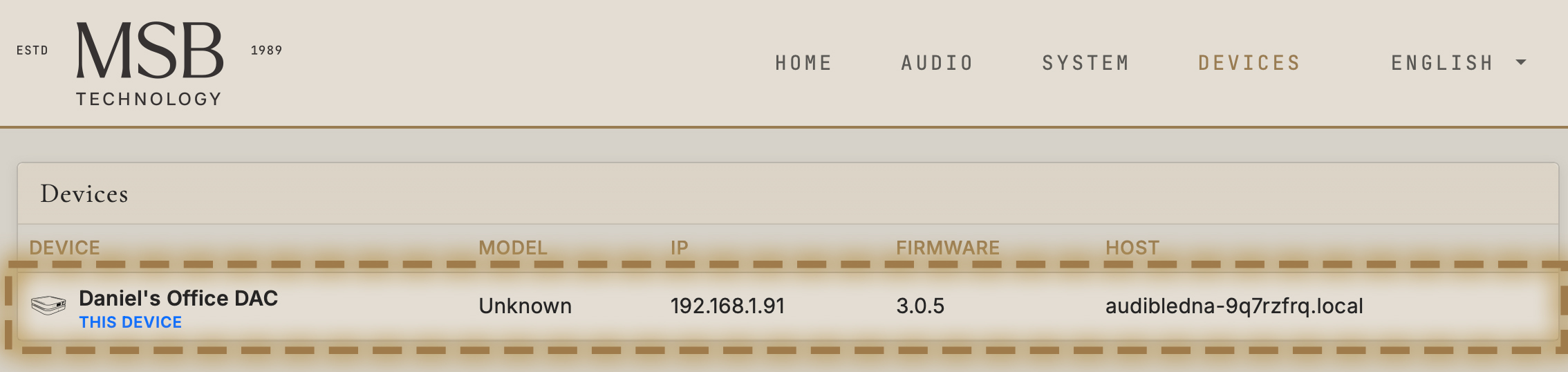
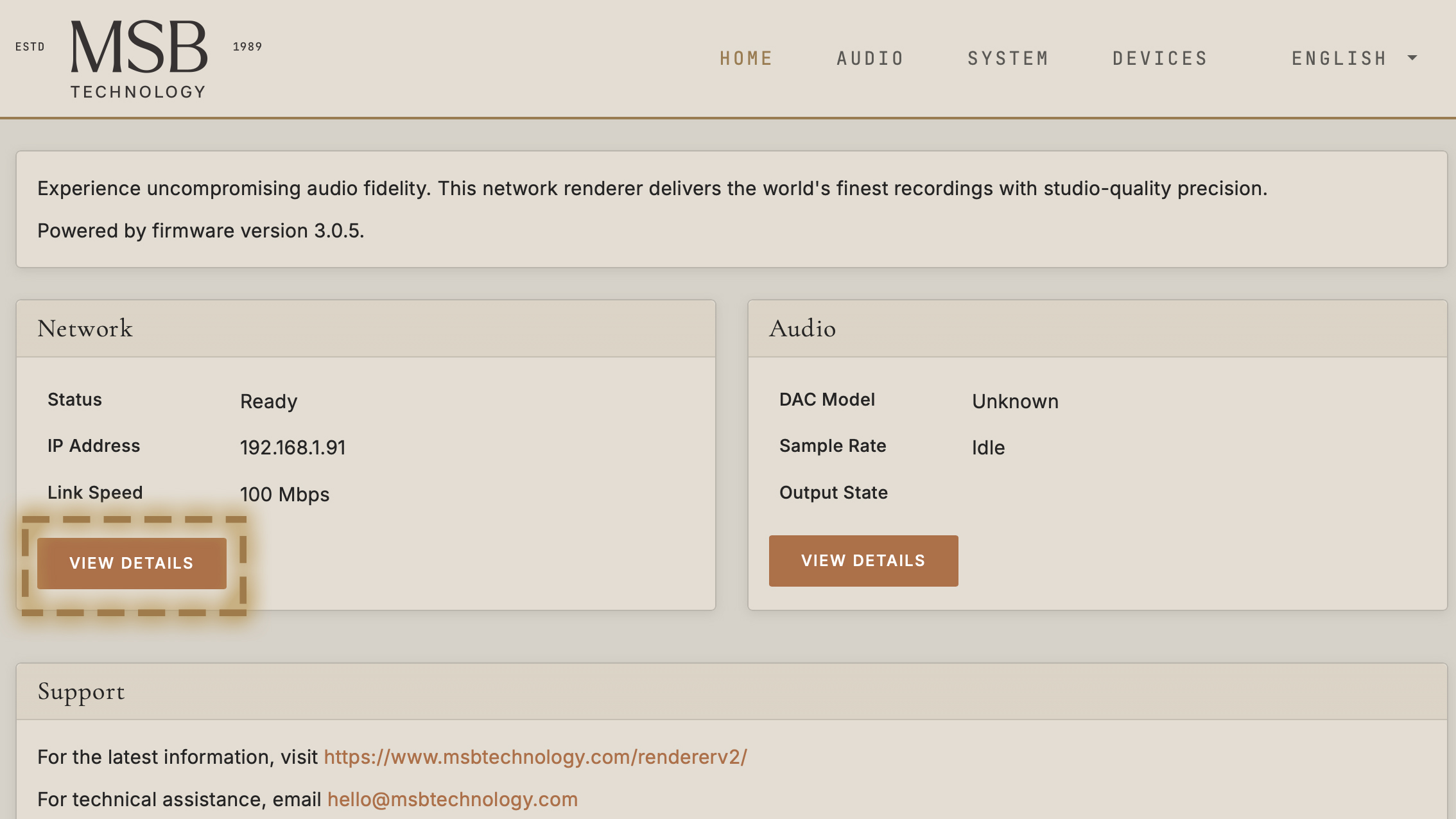
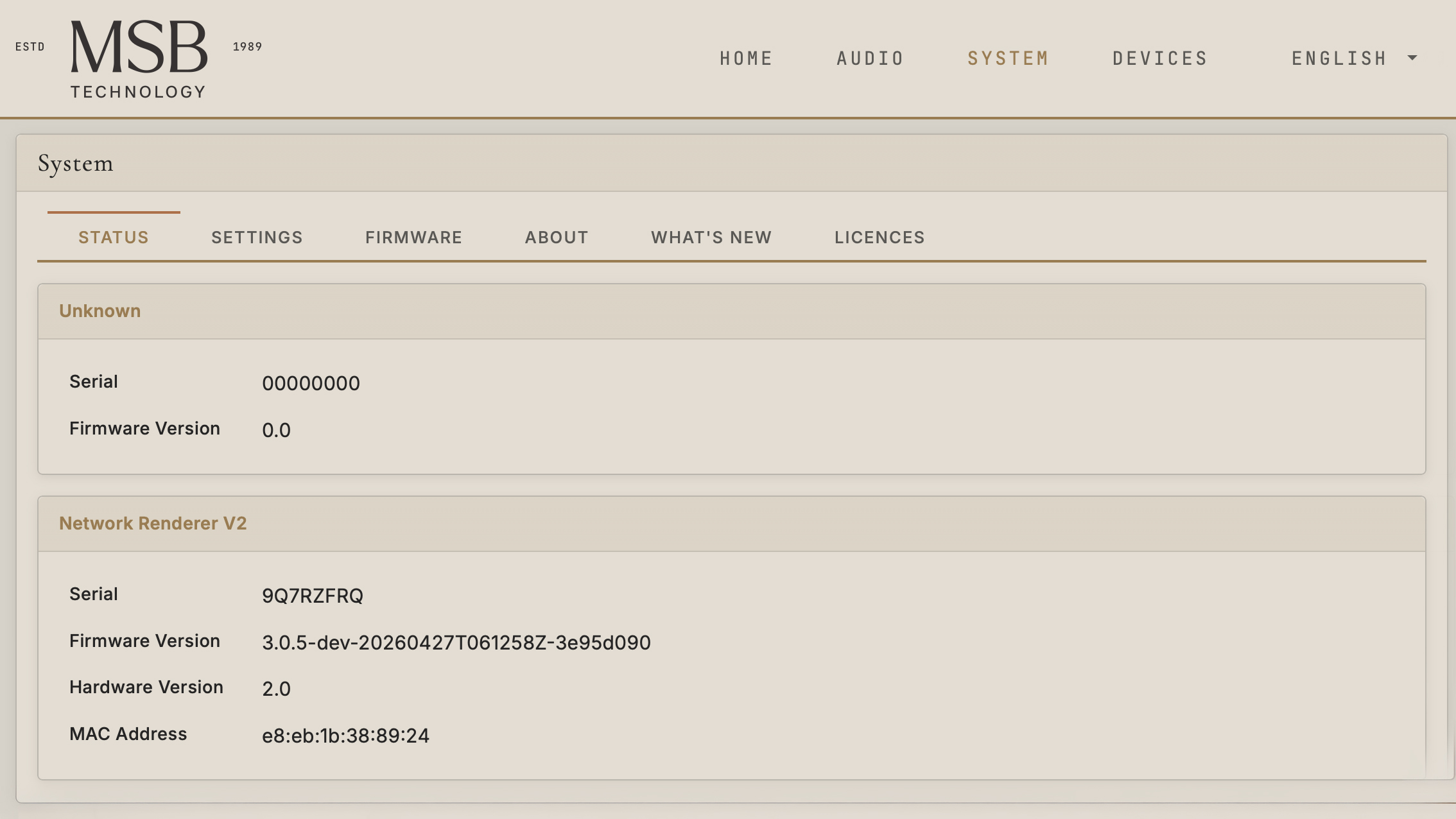
To check your Renderer firmware using a desktop or mobile device, while connected to the same network as your renderer, use a web browser to visit "msbtech.local" There you will find all active renderers on your local network. Select the desired renderer/unit and it will take you the general overview page for that renderer module. If you select "View Details" on the left side of that page, you will be taken to a page that lists any information that is relative to the renderer module. The "Firmware Version" is the current installed firmware/software your network renderer is operating on and the "Hardware Version" is which physical version of the renderer you have. (If you have a V2 module it should be noted on the jackpanel of the input)
Checking Renderer firmware (DAC menu)
On MSB DAC models that have larger format displays (like the Cascade and Sentinel DACs), you can navigate to the “Input” slot section of your DAC menu to find the Input slot that the renderer is currently installed in and it will display the firmware code.
*** NOTE. Navigating to the “Input” section of your DAC menu is not the same as simply changing the active input for audio playback. If you experience issues with finding the “Input” slot section of your DAC menu, refer to the menu section of your DAC User Manual. ***
Checking the firmware in Roon
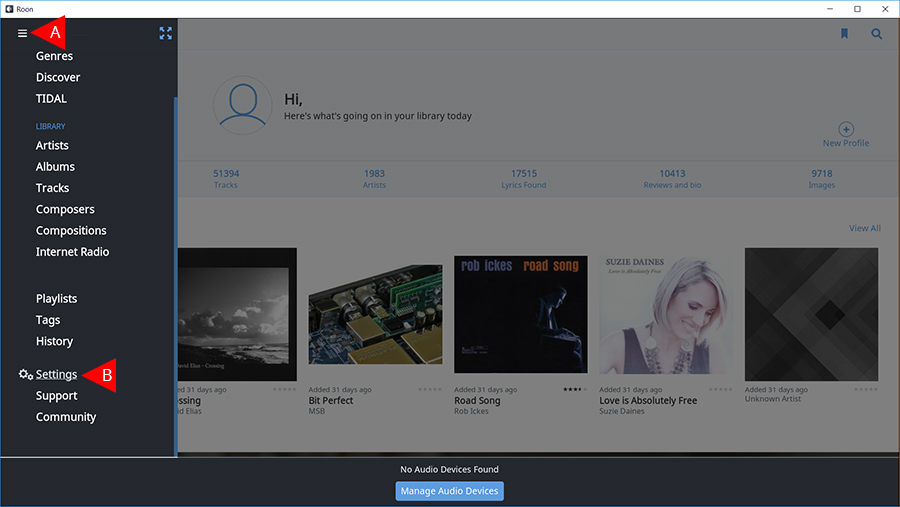
Step 1
A. Open the navigation menu in Roon by clicking the icon in the top left of the Roon media player.
B. Scroll down to the bottom of the menu panel and select “Settings”.
Step 2
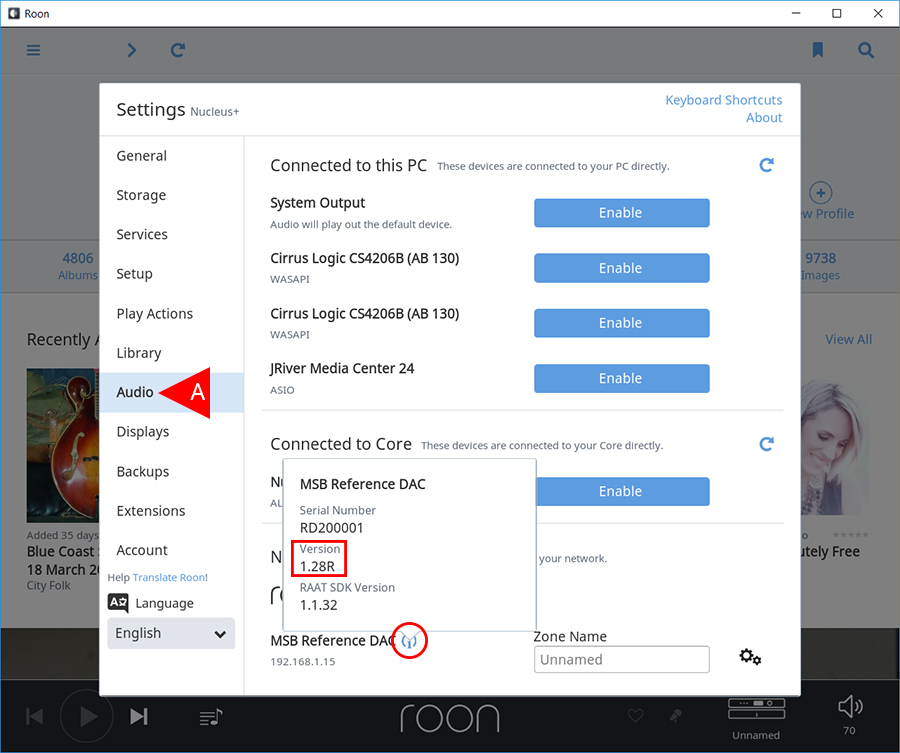
A. Select “Audio” from the left menu panel.
B. Find your MSB product under the “Networked” section in the main panel and select the “i” icon next to the MSB Products name.
*** NOTE. The name and serial number of your MSB product are also located here. ***
*** NOTE. A more detailed read out of your information can be found by typing the IP address of your renderer into the URL bar on your web browser. The IP address of your unit is displayed below the name of your MSB product on this same Roon setup page. ***