
Overview | Network Setup | JRiver Setup | Roon Setup | Qobuz Setup | Firmware
Qobuz Setup
Updated 04.013.2026
Instructions with Qobuz Connect 8.1.0
Install Qobuz
If you have not already done so, install Qobuz on your computer.
The download files can be found at the Qobuz website below.
www.qobuz.com/us-en/discover/apps-partners
Install The Network Renderer V2
* Unplug the unit before installing module *
While your system is unplugged, install the new input module. We recommend watching our input and output module video to learn proper module handling and avoid damaging your input modules or product during this process.
Plug your Renderer V2 module into your home network (either a network switch or directly into your network router) using your preferred ethernet (cat6) cable.
Desktop Qobuz
Step 1
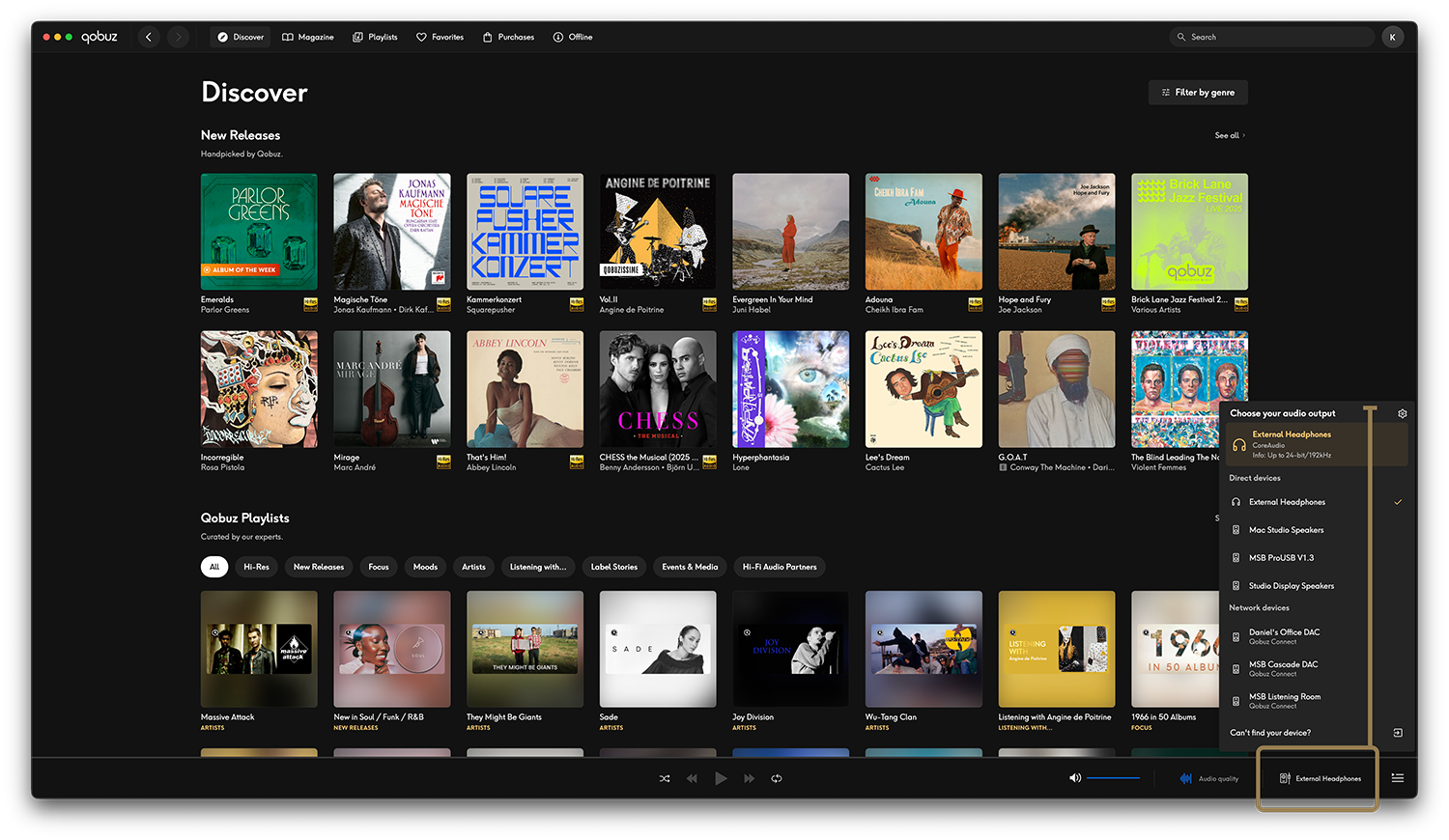
Once you have downloaded Qobuz and signed into your account, start by launching the Qobuz software. Once you have the Qobuz software loaded. You can select your output device in the lower right corner. Here you will find all audio connections made to your device as well as any selectable devices on your network.
Step 2
Once you have selected a playback device, you are ready to start listening to music. Once you have selected an audio file, you should see the following.
A) This is where you will see your currently playing audio track.
B) If you click the Info Icon you will see all relative information about the current track. (I.E. Publisher, Studio, Etc.)
C) Here you can control things like play/pause and track forward and back.
D) This will let you control the volume of your DAC
E) Selecting this will let you pick between any of the available resolutions of the currently selected track. (It may require you to skip forward and back to update the information displayed on your DAC)
F) This will allow you to switch to another playback device.
G) This will open a tab of your currently track queue or playlist.

Mobile App Qobuz
Step 1
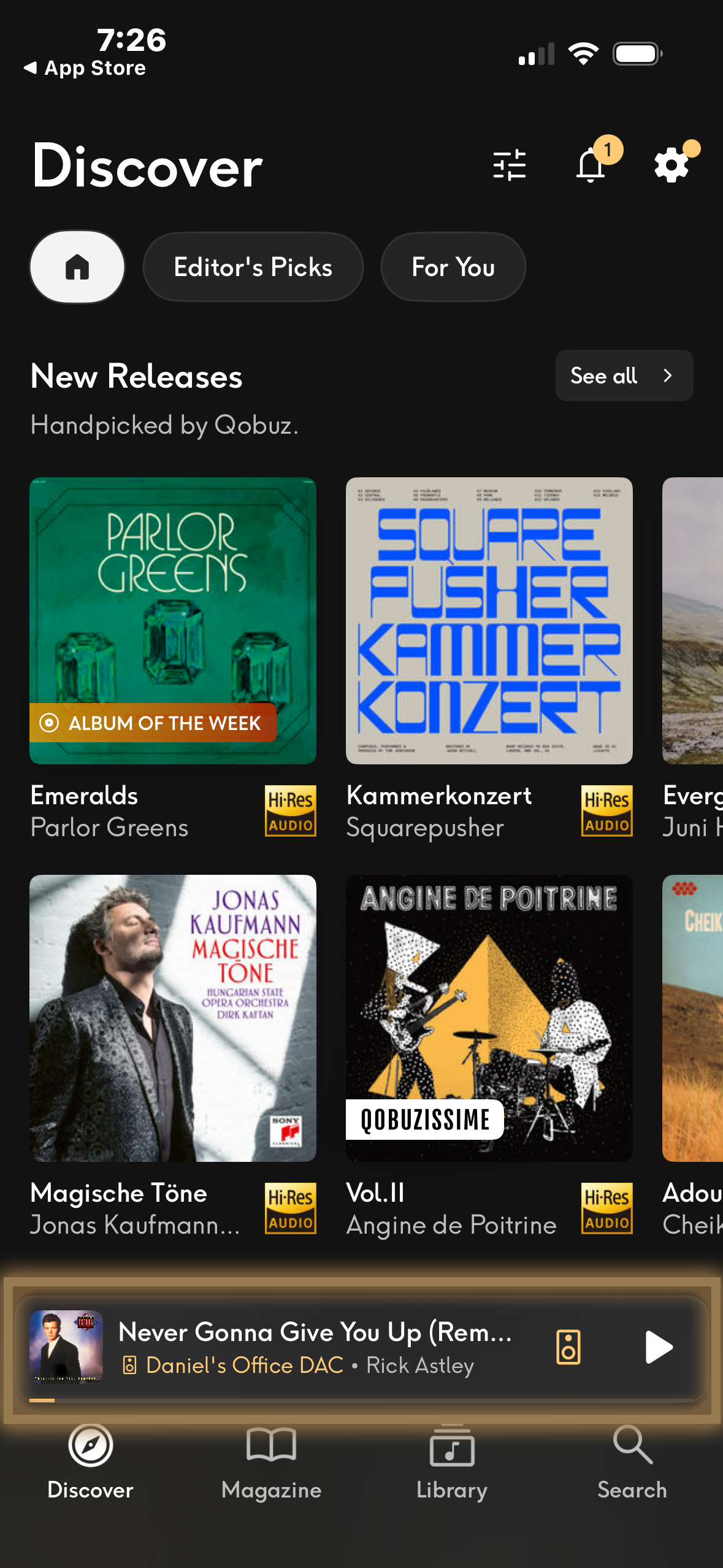
Launch the Qobuz app and tap the current track bar at the bottom of the screen. (Quick Tip - When listening to music you can swipe this same bar back and forth to skip songs backwards and forwards )
Step 2
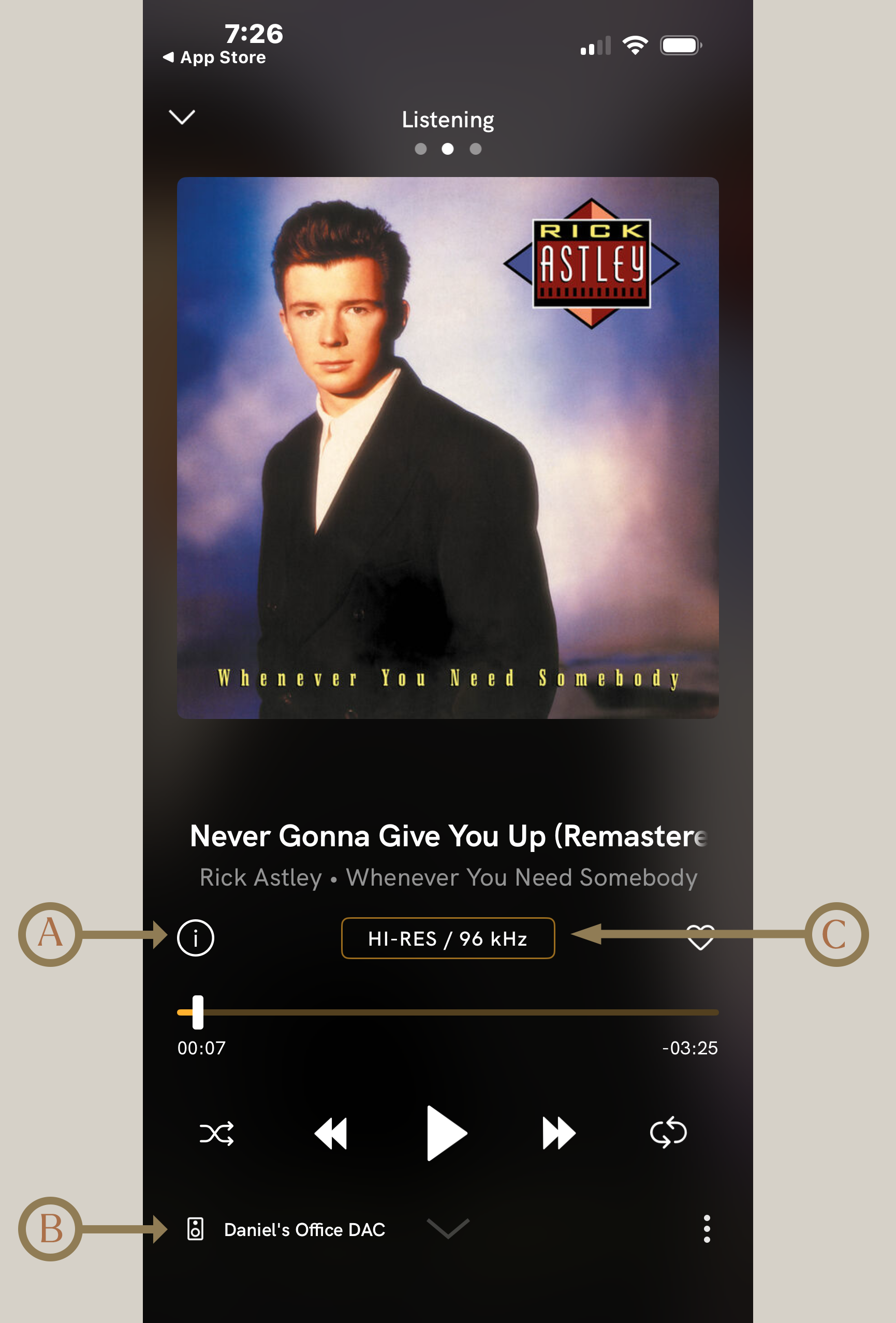
Start by selecting your playback device at the bottom of the window (B).
After that you are ready for listening, But there a few controls on this screen as well. Other than the usual play/pause, track forward, and track back; you can also select the resolution (C) to change between available file resolutions. The info icon (A) will bring up all relative information about the currently playing track.
(Quick Tip - Swiping right to left on this screen will take you to your file queue/playlist and swiping left to right will take you to your play history)